Browsing and Filtering the Sales Log
The Sales Log gives you a complete view of every sale in your database with powerful filtering, sorting, and search. Use it to drill into specific time periods, producers, product lines, or any combination of filters.
Navigating to the Sales Log
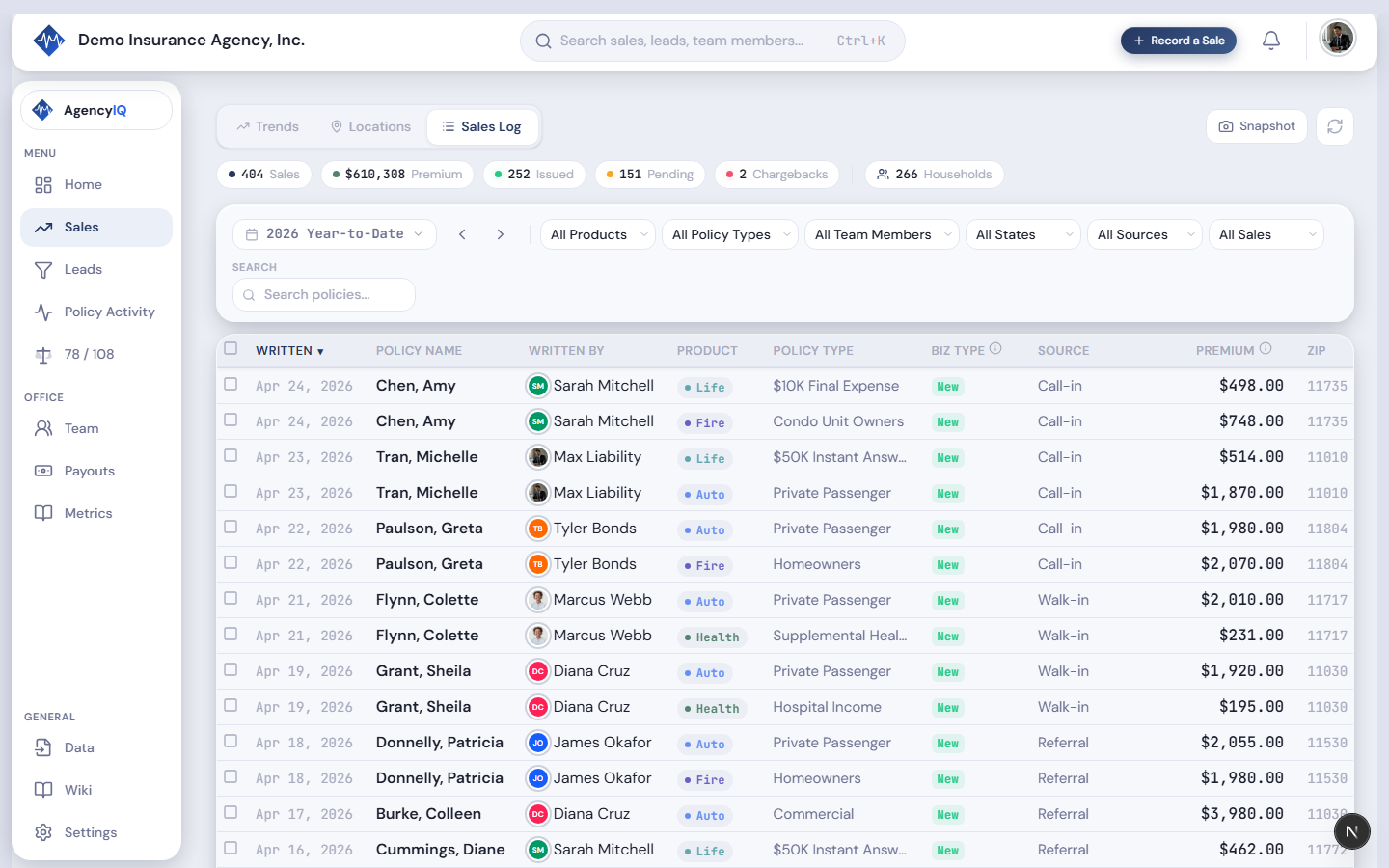
Open the Sales page from the sidebar, then click the Sales tab (the third tab, after Trends and Locations). Your full sales history appears in a searchable table.
Table Columns
The Sales Log displays the following columns for each sale:
- Written Date — when the policy was written
- Product — product line (Auto, Fire, Life, Health) with a colored dot
- Policy Name — the client or policy holder name
- Written By — the producer who wrote the sale
- Issue Date — when the policy was issued by the carrier
- Days to Issue (DTI) — business days between written date and issue date
- Business Type — new business, rewrite, or renewal
- Policy Type — the specific coverage type
- Source — how the client came in (walk-in, referral, internet lead, etc.)
- Premium — the written premium amount
- Zip — the client's zip code
Sorting
Click any column header to sort ascending or descending. Click again to reverse the sort order. Sort by premium to find your biggest deals, by date for most recent activity, or by writer to group all of one producer's sales together.
Filtering
The filter bar above the table lets you narrow your view with multiple criteria:
- Date range — start and end date to focus on a specific period
- Writer — filter to a single team member's sales
- Product line — show only Auto, Fire, Life, or Health
- Source type — filter by how clients were acquired (referral, internet, walk-in, etc.)
- State — filter by policy state
- Issued status — Issued, Pending, or Chargeback
Combine multiple filters for precise views — for example, "Sarah's Auto policies from January that are still pending."
Searching
The search box searches across policy name, writer name, product, source, state, and zip code. Type a client name to instantly find their policy, or search a zip code to see all sales in that area.
Linking Sales to Leads
Each row has a link icon that lets you manually match the sale to an internet lead. This is useful when the automatic matching didn't catch a connection — for example, when the client's name was slightly different on the lead vs. the policy.
Tip. Use the Reset All button to clear all active filters at once when you want to return to the full view.
Last updated: 2026-04-22